Connect Playtomic for supported imports
Save and test each club’s API credentials and tenant ID, then run player sync from Dashboard → Players.
Before you start
Have a Playtomic Client ID and Client Secret with access to your club data, plus the tenant ID for every venue you want to query.
What you will have
Each configured club will show a tested Playtomic connection and tenant ID, and Players can run the CRM sync.
Tips
Configure every relevant club before syncing: the sync iterates all non-deleted clubs that have a tenant ID.
Troubleshooting
If testing fails, verify the saved credentials first. If one club fails during sync, verify that club’s tenant ID and access without assuming all clubs failed.
Steps
Open Dashboard → Clubs → the club
Open the club you want to connect. The Playtomic card shows saved credentials and a status badge for the last successful test.
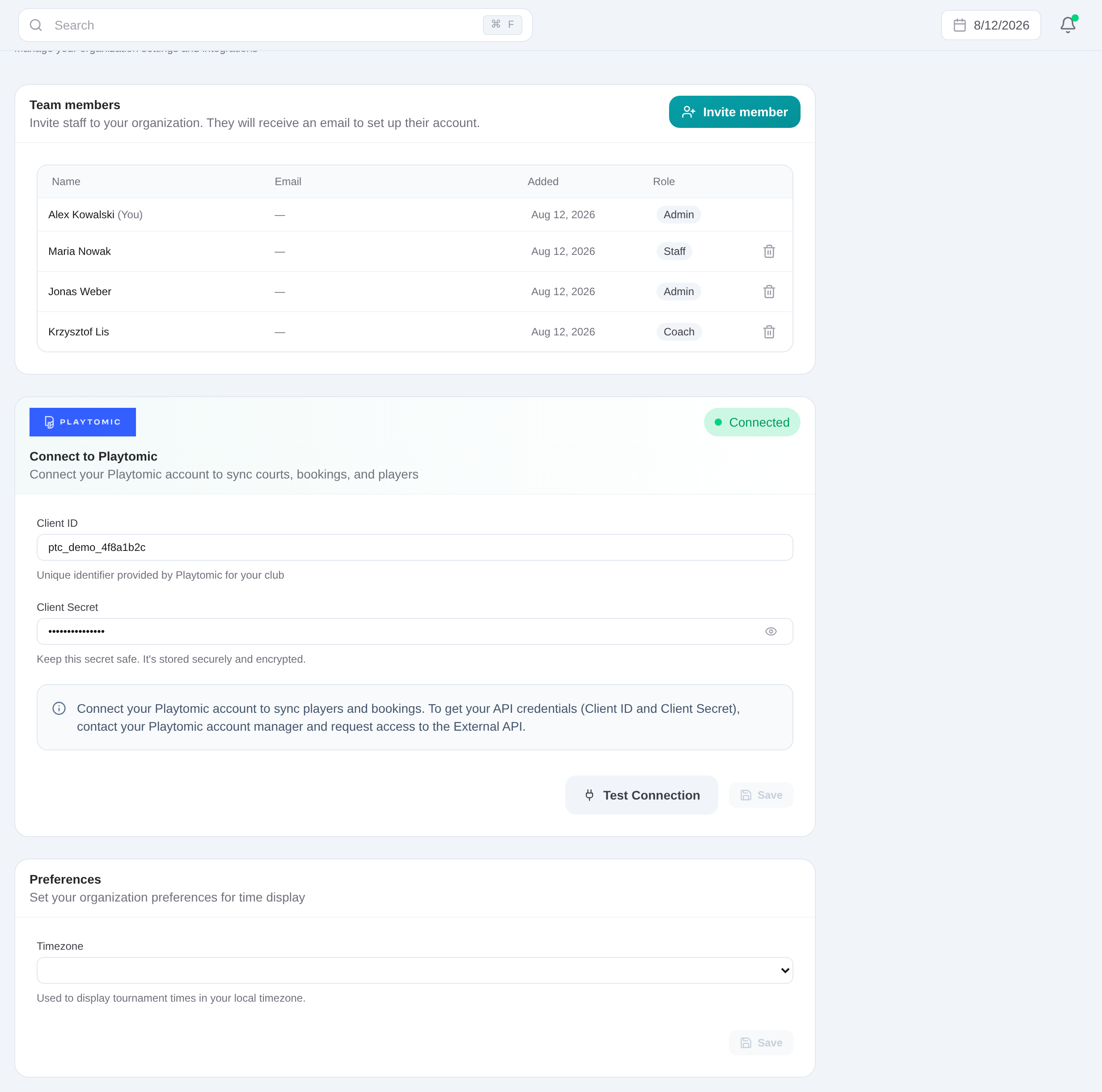
Enter Client ID and Client Secret
Paste the club API credentials into the two fields. Keep the secret in the password field unless you need to inspect it for a correction.
Save the credentials
Choose Save before testing. Editing the values resets the tested state until the new pair is saved and verified.
Run Test connection
Use the test action and wait for a success result. Resolve credential or permission errors before moving to sync or import.
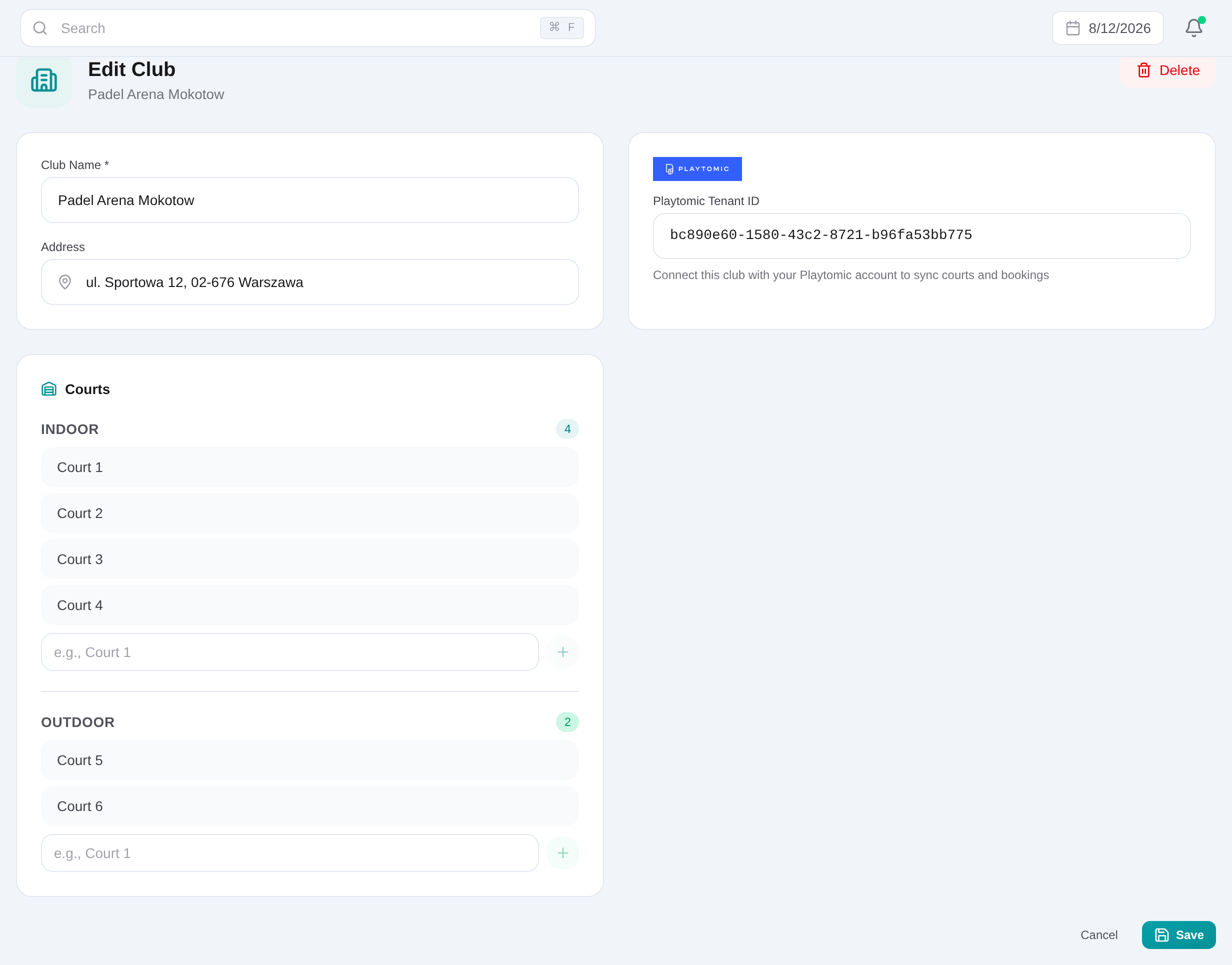
Set each club’s Playtomic tenant ID
On the same club page, enter its Playtomic tenant ID and save. Repeat for every venue that should be queried.
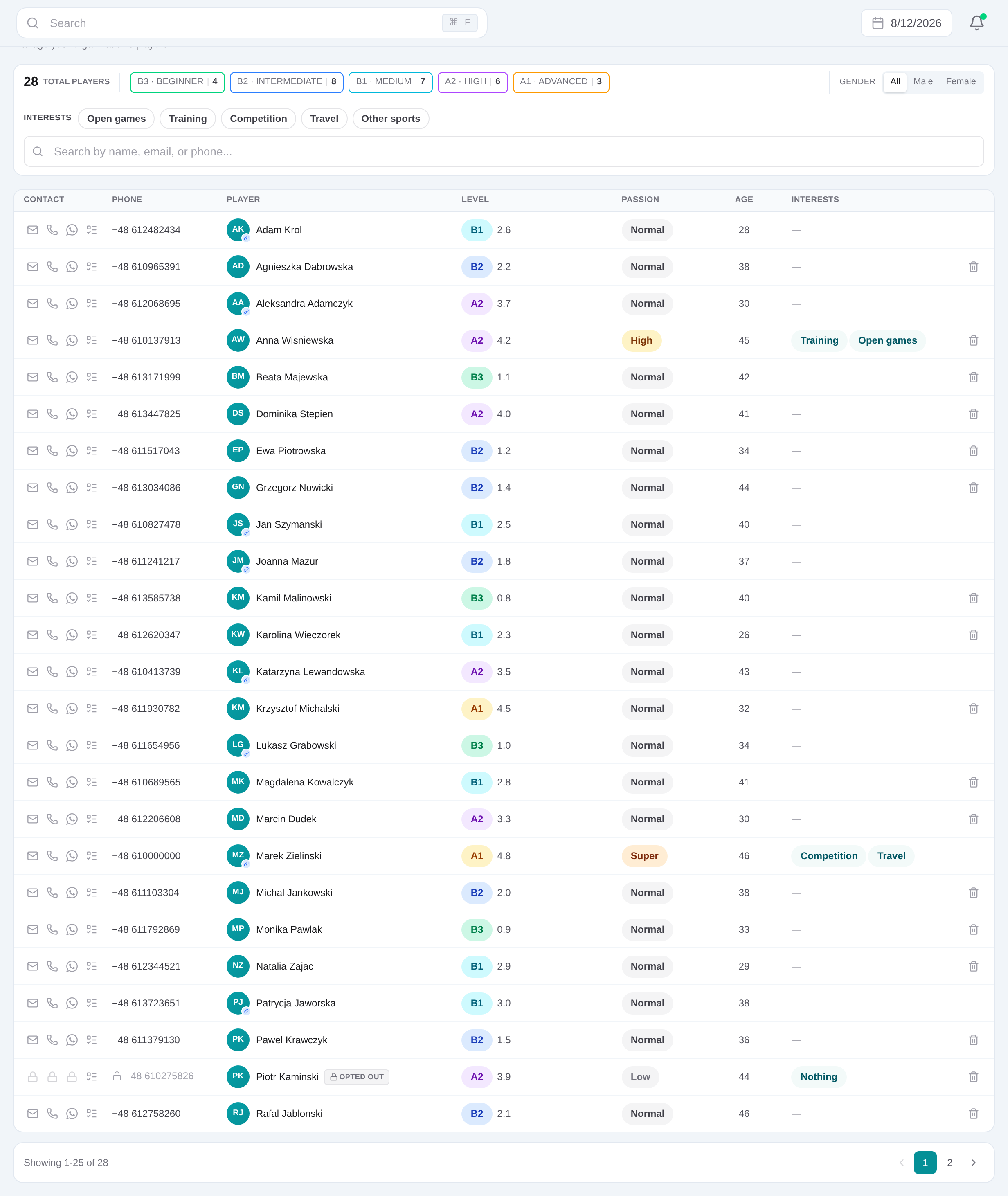
Open Dashboard → Players and run sync
Choose Sync from Playtomic. Review the result counts for clubs and players, then search the CRM for an expected imported contact.
Connect Playtomic for supported imports
Save and test each club’s API credentials and tenant ID, then run player sync from Dashboard → Players.
Get started