Move every Academy request through one pipeline
Create a lead in Requested, then drag it through Matching and Waiting to Confirmed or Lost. Use Kanban for the active pipeline and List for filters, archived records and bulk actions.
Open Dashboard → Academy
Start in Kanban to review active leads by status, or switch to List for archive scope, detailed filters and bulk actions.
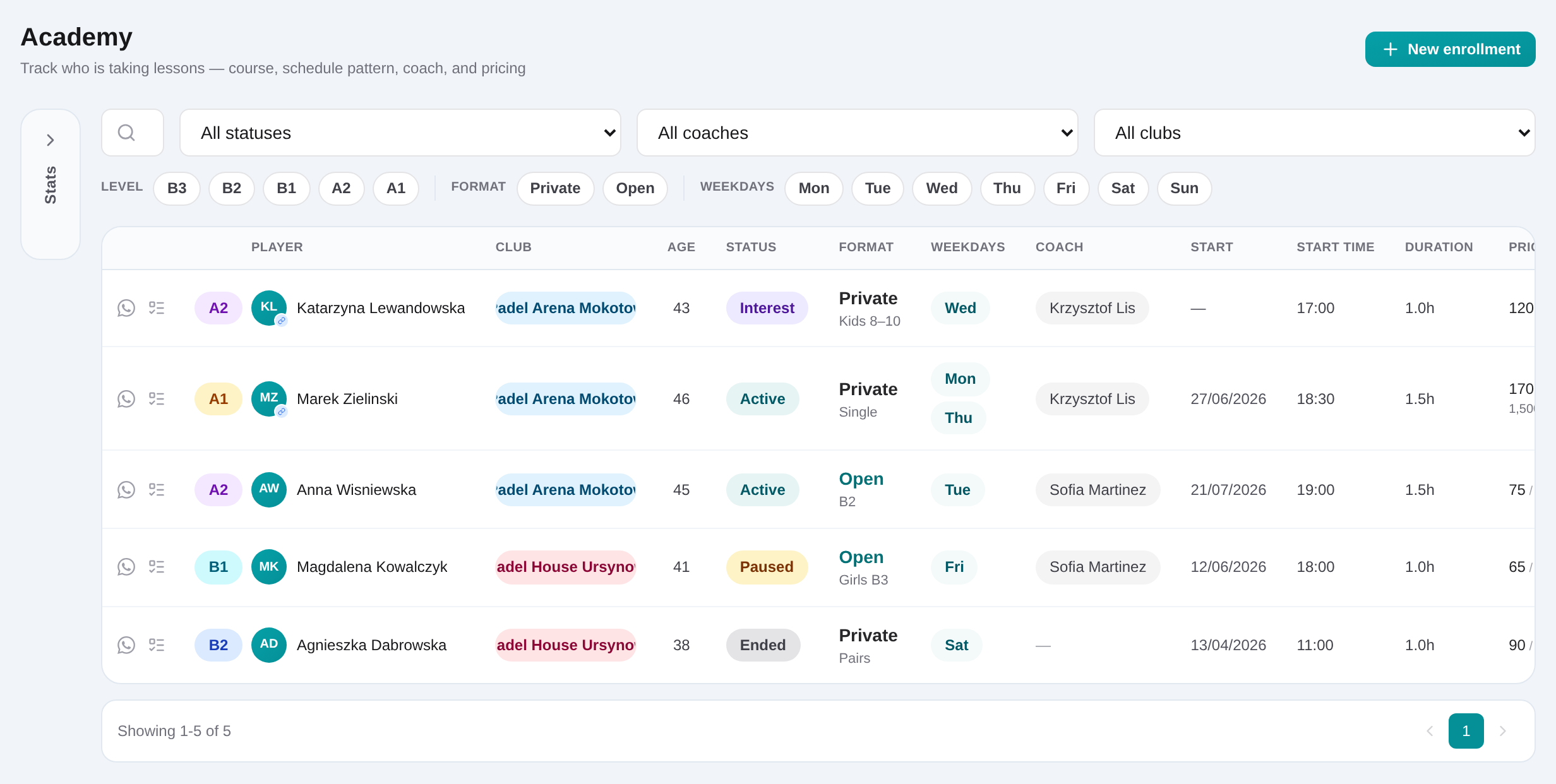
Create a Requested lead
Select the CRM player, choose the Private or Open program and course type, and leave the lead in Requested while the enquiry is new.
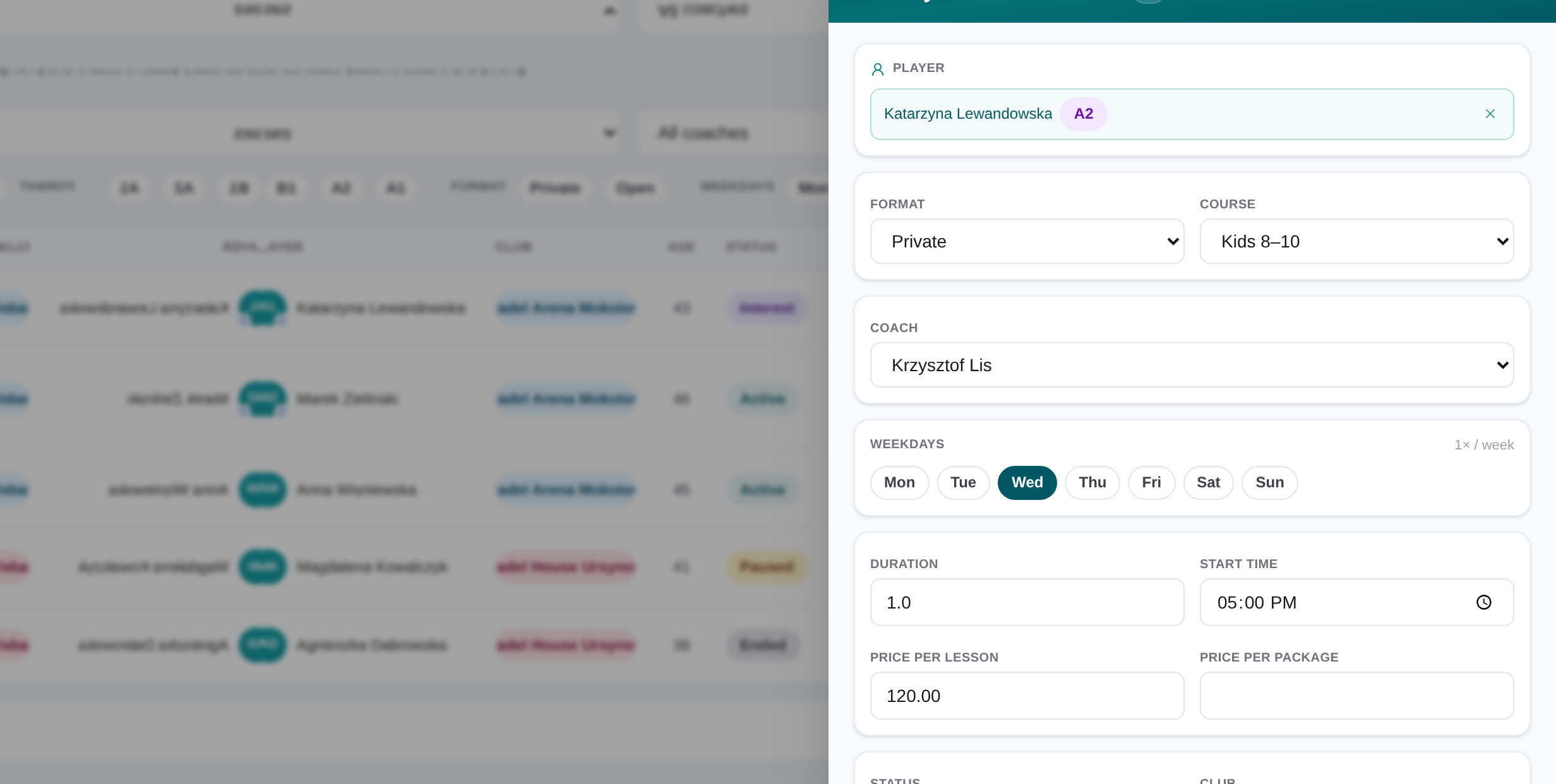
Record course and schedule preferences
Add preferred weekdays and time, wanted start and end dates, and coach or club preferences when the contact has supplied them.
Move the lead through the pipeline
Use Matching while finding an option, Waiting while the contact decides, then Confirmed or Lost when the outcome is known.
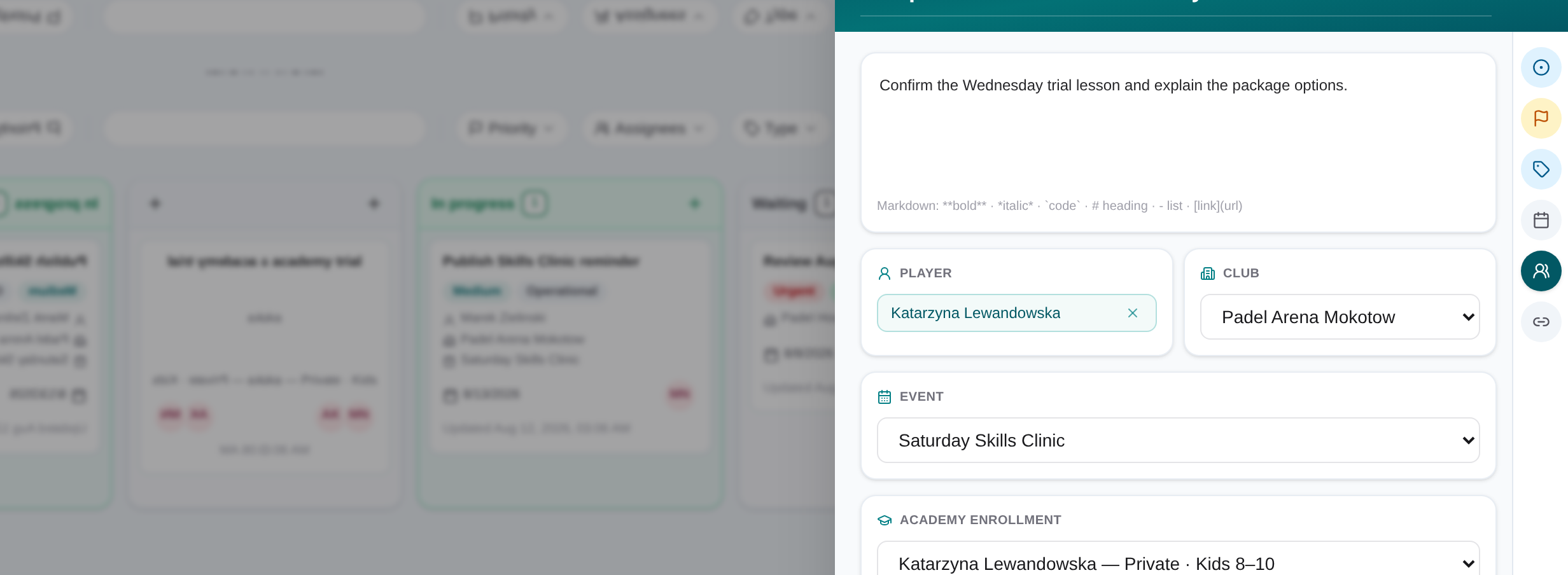
Create a linked task when needed
A task is optional. Add one when follow-up needs a named owner, due date, checklist or separate work queue.
Archive the completed outcome
Confirmed and Lost leads are not archived automatically. Archive them manually when no active follow-up remains, and reopen them later from List if needed.