How to maintain a player from the dashboard
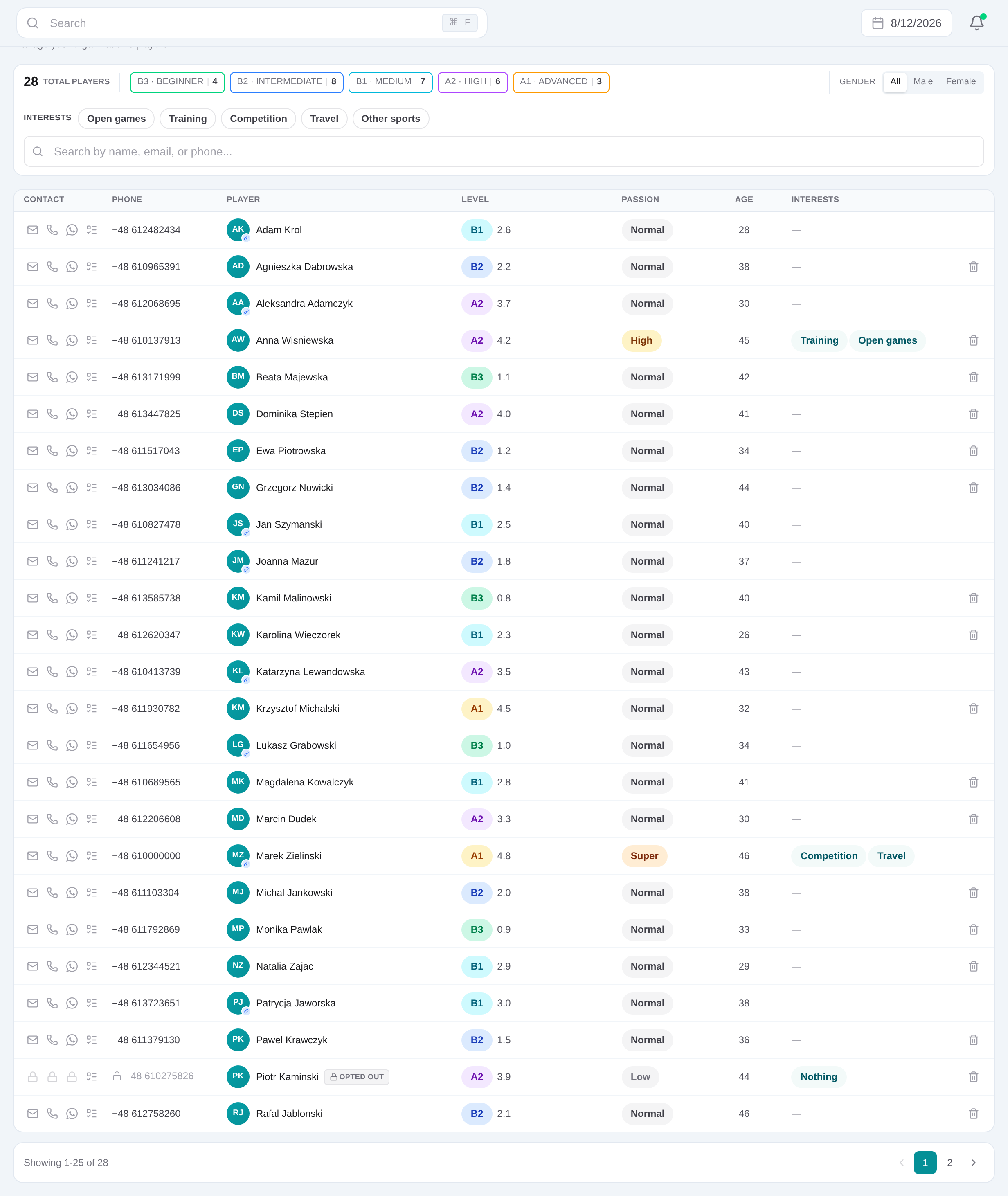
Open Dashboard → Players, search by name or contact details, and narrow the list with level, gender or interest filters. Open the matching row to edit the profile rather than creating a duplicate record.
Give reception, academy and management one reliable player record across WhatsApp, Playtomic bookings, courses, payments, events and follow-up.
Get started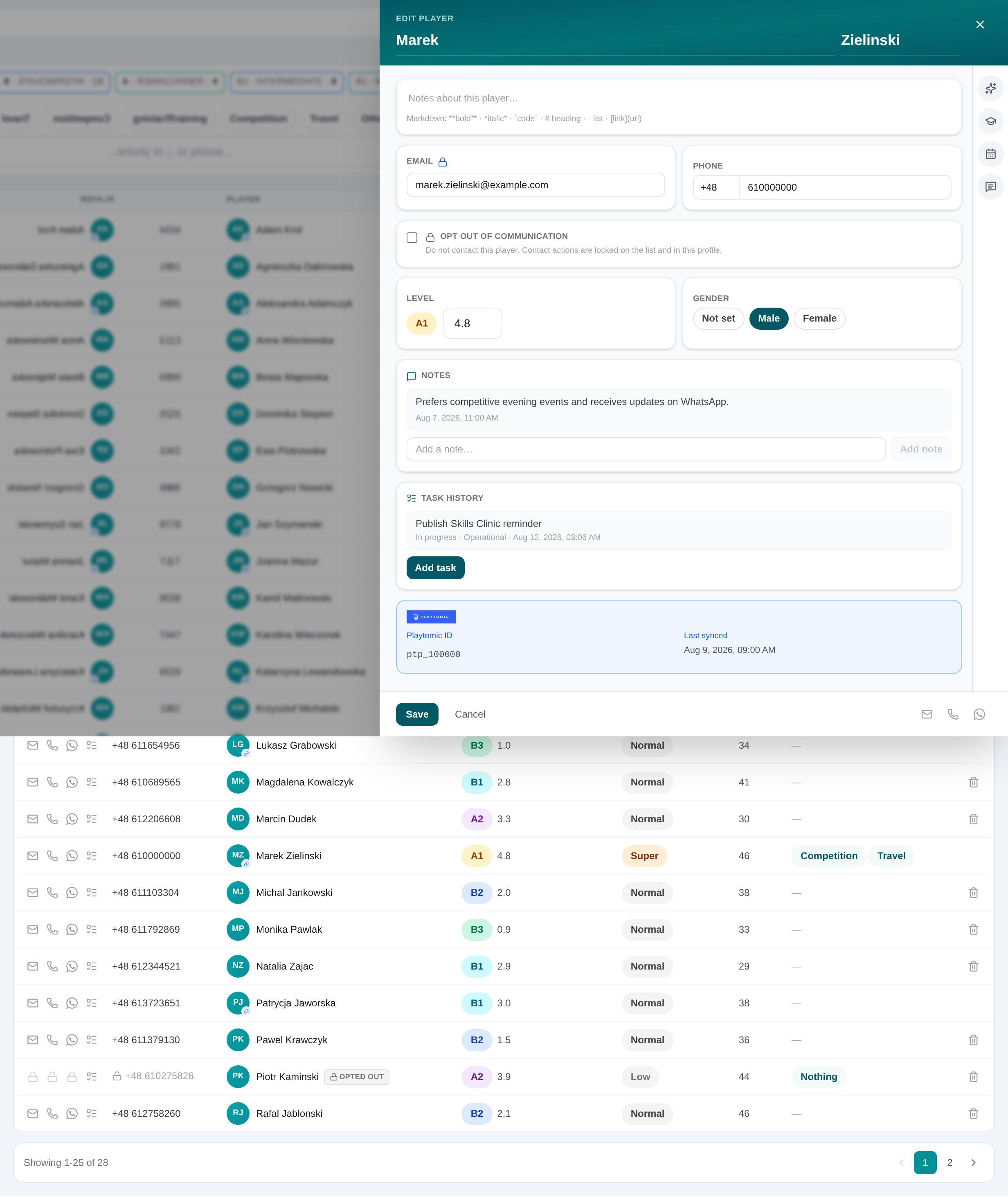
Open Dashboard → Players, search by name or contact details, and narrow the list with level, gender or interest filters. Open the matching row to edit the profile rather than creating a duplicate record.
In the player slide-over, maintain name, phone with country prefix, email, gender and numeric skill level. Add dated notes, and use the Academy, Events and Conversations tabs to review linked operational history.
Profiles include contact details, gender, skill level, interests, dated notes, communication preferences, opt-out status and linked Academy lead, event and conversation context.
Leave it unset. An unknown value is not presented as a level badge, so staff can update it after the player is assessed.
Set one or more communication preferences and record an opt-out on the CRM profile. Interests distinguish topics the player selected from “nothing” and from a profile that has not been asked yet.
Select one or more. “Any” means no preference.
Empty = not asked. “Nothing” is exclusive — asked and they replied none.
Staff only — not sent to the WhatsApp assistant.
Give reception, academy and management one reliable player record across WhatsApp, Playtomic bookings, courses, payments, events and follow-up.
Get started